
Installing a monitor light bar is one of the most effective ways to illuminate your workspace without cluttering your desk, but achieving a glare-free setup requires precise positioning. To completely avoid screen reflections, the light bar must be mounted securely along the top bezel of your monitor and angled so that its asymmetric light beam projects downward and forward, completely bypassing the display surface. When positioned correctly, the light path creates a sharp cutoff line that illuminates your keyboard and documents while leaving the screen in a clean, reflection-free shadow. This guide walks you through the essential pre-installation checks, mounting steps, and optical adjustments needed to optimize your desk lighting and protect your eyes from distracting glare.
Pre-Installation Checks for Your Monitor and Light Bar
Before purchasing or mounting a monitor light bar, verify that your display’s physical design can safely accommodate the fixture. Monitor bezels have become increasingly thin, meaning some mounting clips could potentially press directly against the active liquid crystal display (LCD) panel. Measure the thickness of your monitor’s top edge and compare it with the specifications of the light bar’s mounting bracket. If your monitor has a highly tapered back panel, a standard spring-loaded clamp may slip, whereas a gravity-based counterweight system is generally more forgiving on uneven surfaces.
Physical clearance behind the monitor is another critical factor, especially if your desk faces a wall. Gravity-style mounts rely on a weighted arm that hangs behind the screen, requiring a few centimeters of clearance to sit properly. If your monitor is mounted flush against a wall on a slim bracket, you may need to choose a light bar with a low-profile magnetic mount or a mechanical clamp that secures to the top bezel without extending far back.
Products mentioned in this guide
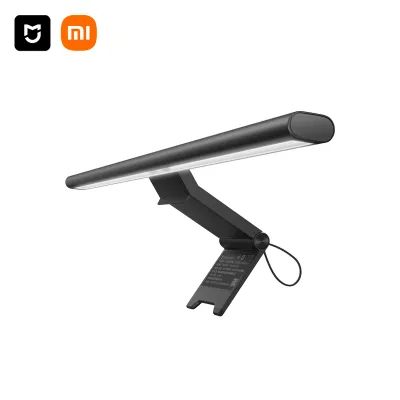
1 Lazada user ratings
It has a unique, hand-crafted look, and the brightness is great. Plus, it works perfectly with the Mi Home app.
![[Free 12 Months Warranty] Mi Wireless Control Hanging Light Bar Foldable Eyes Protection Without Reflection Study Reading Desk Lamp for Monitor](https://img.lazcdn.com/g/p/f6135369eecb6f0fad793eb33797665b.jpg_400x400q80.jpg_.webp)
184 Lazada user ratings
Quick delivery, order came within 1.5days. Box came undamaged. Tested working perfectly on my samsung odyssey curved monitor.
Quality feels solid. Remote control is quite cool. Very handy and no need to reach forward to adjust settings.
Fantastic light bar, easy to use and install. Good light to brighten the workspace at night and in the day.
Great product and value for money. Delivery well packed and got it 2nd day after placing order.
delivery was fast and the wrapping is thick enough to protect the box and the product
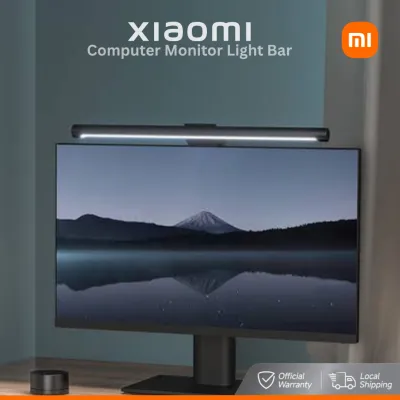
333 Lazada user ratings
The monitor light bar fit well on my Prism 34 inch curve monitor. Not forgetting it provide me a good light source in the event of need. Def…Read full reviewShow less
The monitor light bar fit well on my Prism 34 inch curve monitor. Not forgetting it provide me a good light source in the event of need. Definitely a needed device if you have limited desktop space and you are looking to have a lamp for your desktop in the event of need. Only downside is the remote control is a finger print catcher.
Impressive product. Well designed, feels premium and works extremely well. The wireless dimmer is a great idea. This must be a better buy th…Read full reviewShow less
Impressive product. Well designed, feels premium and works extremely well. The wireless dimmer is a great idea. This must be a better buy than the BenQ light bar, which doesn't include a wireless dimmer. Xiaomi is truly innovative.
Great metal body, solid build. Clean adjustment angle. Brightness and warmth level adjustable. Best monitor light bar on the market.
Received in good condition. Item work well. Recommended to those that work from home.
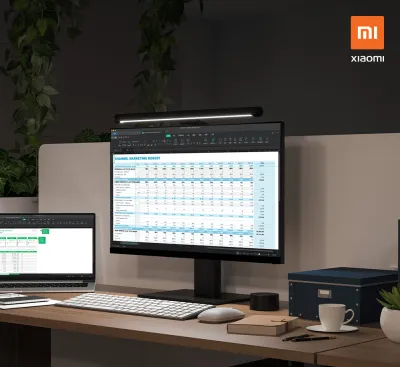
5 Lazada user ratings
Affordable and works very well to illuminate the work area without casting a glare on the screen. the remote is a dial to change the tempera…Read full reviewShow less
Affordable and works very well to illuminate the work area without casting a glare on the screen. the remote is a dial to change the temperate and brightness. much better than those with preset brightness/temperatures. Definitely a worthy buy for home offices. Does not take up desk space either
Fast shipping and great product. Easy to setup and use right away!
Great quality for the price! Cheaper than Xiaomi official store.
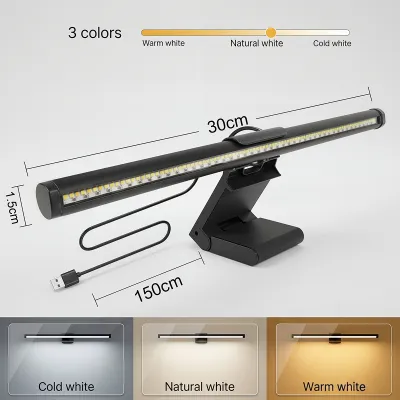
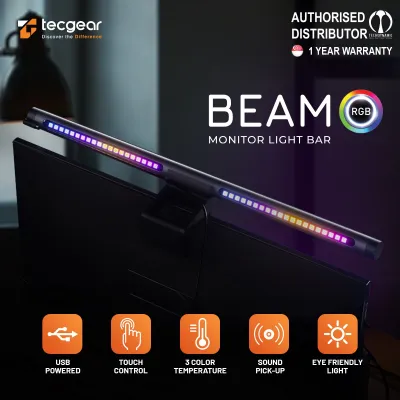
185 Lazada user ratings
good light bar, RGB back light is bright enough. front light is decent with the settings. dont expect the lighting angle to be the same as B…Read full reviewShow less
good light bar, RGB back light is bright enough. front light is decent with the settings. dont expect the lighting angle to be the same as Ben q. there is some glare on the upper side of monitor.
Good build quality. 3 types of lighting as advertised. Personally would have preferred it to be slightly brighter but it serves its purpose.
2nd purchase. Good light color. able to dim to my preference. easy switch color. fast delivery too.
Great!!! Happy with the item.delivery was fast.thank seller 😍😍😄
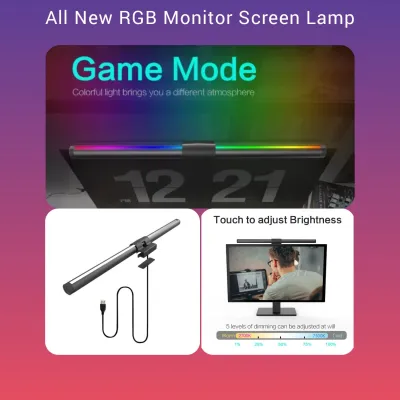
7 Lazada user ratings
This item is really value for the price. I like play game and the RGB light is really made the gaming atmosphere. And beside that it come wi…Read full reviewShow less
This item is really value for the price. I like play game and the RGB light is really made the gaming atmosphere. And beside that it come with two touch switch 1 for normal light and 1 for the rgb light. Normal light come with 3 mode normal warm and warmer. RGB light come wiDeliverytoom. Delivery took about 3 days. I really love it.
Functionality:very good Quality:amazing Material:👍🏻 easy to install to the monitor and use :D
Good value for money and easy to control. Fast delivery too!
Prices are valid at publication and may change. Please refer to the product page for the latest price.
Electrical compatibility is equally important to prevent performance issues like flickering. Most monitor light bars are powered via a USB cable connected to a computer port, a monitor hub, or a dedicated wall adapter. Check the manufacturer’s label on the light bar to identify the exact voltage and amperage requirements, which are commonly 5V and 1A or 2A. Standard USB 2.0 ports on older computers may only output 0.5A, which is insufficient for many modern light bars and can lead to dimming or unstable operation. Ensure you have an available USB 3.0 port, a high-power Type-C port, or a certified external power adapter ready before installation.
Additionally, look for electrical safety certifications on the product label. These certifications ensure the internal circuitry is protected against short circuits and overheating, which is vital when drawing power directly from expensive computer hardware.
Step-by-Step Mounting Guide
To begin the installation, prepare your workspace by turning off your monitor and clearing any dust or debris from the top edge of the screen. Dust and oils from your hands can reduce the friction of rubberized grip pads, causing the light bar to slide or sit unevenly over time. Use a dry microfiber cloth to wipe down the top bezel and the upper portion of the back panel. If your monitor has an integrated webcam or built-in sensors along the top edge, plan the placement of your light bar slightly off-center or verify that the mount has a cutout to avoid blocking these components.

Next, prepare the mounting mechanism of your light bar. For gravity-pivot mounts, gently open the spring-loaded arm or adjust the counterweight angle to match the approximate thickness of your monitor. Carefully lower the front lip of the mount onto the top bezel, ensuring it rests securely without applying downward pressure on the glass panel itself. Slowly let the weighted backrest swing down until it rests flush against the rear of the monitor housing. The weight of the backrest should balance the light bar naturally, holding it in place through gravity and friction rather than tight clamping force.
If your light bar uses a magnetic pad or a mechanical screw clamp, follow the manufacturer’s instructions to secure the base first before attaching the light tube. Avoid overtightening mechanical clamps, as excessive pressure can pinch the display layers and cause backlight bleeding or permanent panel damage. Once the mount is stable, gently insert the light bar into its holder, ensuring it clicks or snaps into the designated alignment slots.
The final physical step is routing the power cable to maintain a clean, safe desk setup. If your monitor is mounted on an adjustable gas-spring arm, leave enough slack in the cable to allow the monitor to tilt, swivel, or rotate without pulling on the light bar’s power port. Use cable clips or hook-and-loop straps to secure the wire along the monitor’s stand or arm, keeping it hidden from view and preventing accidental snags that could pull the light bar off the screen.
Positioning and Angling for Zero Screen Reflection
The primary feature that distinguishes a high-quality monitor light bar from a standard desk lamp is its asymmetric optical design. Unlike traditional lamps that spray light in a wide, symmetrical cone, a monitor light bar uses a specialized internal reflector or lens to direct light at an angle. This design creates a sharp diagonal cutoff line, projecting light forward onto your desk while keeping the area directly behind the light bar—where your screen sits—completely dark. Understanding this optical path is key to adjusting the fixture for zero glare.
To find the perfect angle, turn on the light bar and sit in your normal working position. Hold a flat piece of paper vertically against the screen, moving it downward from the top bezel. Observe where the light beam first hits the paper to locate the cutoff line. Slowly tilt the light bar tube until this cutoff line sits just below the top bezel of your monitor, casting light onto your keyboard while leaving the screen surface entirely in the shadow. If you see light reflecting off the screen, the light bar is tilted too far backward.
If you still experience distracting reflections, consider the finish of your monitor screen. Matte screens are designed to diffuse ambient light, but they can still catch stray light from an improperly angled light bar, resulting in a washed-out contrast. Glossy screens, on the other hand, act like mirrors and will show a sharp reflection of the light source if the light bar is tilted too far forward, exposing the LEDs to your line of sight. If you have a glossy display, tilt the light bar slightly forward so the light source itself is hidden from your direct view, and ensure the beam path does not strike the screen surface at all.
Optimizing Desk Illumination and Eye Comfort
Once the physical positioning is perfected, adjust the light bar’s settings to harmonize with your environment. Running the light bar at maximum brightness in a dark room creates an extreme contrast ratio between the bright desk surface and the dark surrounding space, leading to eye strain. Instead, adjust the brightness so that the illumination on your desk matches the ambient light level of your room, creating a smooth, comfortable transition for your eyes as you look around your workspace.
Color temperature adjustment is another powerful tool for maintaining eye comfort throughout the day. During daytime hours, especially in a home office with natural light, set the light bar to a cooler color temperature (around 5000K to 6500K). This crisp, blue-toned light mimics daylight, helping to maintain focus and alertness. As evening approaches, transition the light bar to a warmer, amber tone (around 2700K to 3000K). Warmer light reduces blue light exposure in the evening, creating a relaxing atmosphere that aligns with your body’s natural circadian rhythm.
Finally, evaluate the overall light distribution across your primary workspace. The light bar should provide even, shadow-free illumination across your keyboard, mouse, and any physical documents or notebooks you keep on your desk. If you notice harsh shadows cast by your hands or monitor stand, try adjusting the horizontal position of the light bar slightly or clearing tall objects from the path of the beam. The goal is a balanced, glare-free pool of light that makes reading and typing effortless.
Maintenance and Troubleshooting Common Issues
To keep your monitor light bar performing optimally, regular maintenance is necessary. Over time, dust settles on the optical lens or diffuser, which can scatter the light beam and introduce unwanted glare. To clean the light bar, turn it off, unplug it, and gently wipe the lens with a dry, anti-static microfiber cloth. Avoid using liquid glass cleaners, alcohol, or abrasive materials, as these can degrade the optical coatings or scratch the plastic diffuser.
If you notice your light bar slipping, drooping, or shifting out of position, the issue is usually related to the mounting grip or weight distribution. Over time, the rubber pads on the mount can collect dust and lose their grip. Clean the rubber pads with a slightly damp cloth and let them dry completely before remounting. If the light bar continues to droop, double-check that the counterweight is positioned correctly according to your monitor’s thickness, or consider adding a small piece of non-damaging double-sided mounting tape to secure the bracket.
Electrical issues such as flickering, dimming, or failing to turn on are almost always caused by an unstable power supply. If your light bar is plugged into a USB hub alongside other high-draw devices like external hard drives or webcams, the hub may not be supplying sufficient current. Try plugging the light bar directly into a USB port on your computer’s motherboard or using a dedicated USB wall charger. If the problem persists, inspect the power cable for any physical damage or kinks, and try using a high-quality replacement cable of the same specification.
Frequently Asked Questions (FAQ)
Can I use a monitor light bar on a curved or ultra-wide monitor?
Yes, you can use a monitor light bar on curved or ultra-wide displays, but you must select a compatible model. Standard straight light bars may cast light onto the curved edges of the screen, causing glare. For curved monitors, look for a light bar specifically designed with a curved frame that matches the radius of your screen, or choose a mount that extends further forward to clear the screen’s curvature.
Does a monitor light bar replace the need for a traditional desk lamp?
For most computer-centric tasks, a monitor light bar can fully replace a traditional desk lamp while saving valuable desk space. However, if your work involves tasks off to the side of your monitor, such as drawing, crafting, or reading large physical documents spread across a wide desk, a traditional adjustable desk lamp may still be needed to provide targeted, flexible illumination.
Why is there still a faint reflection on my glossy screen?
A faint reflection on a glossy screen is usually caused by ambient light from windows or overhead fixtures reflecting off the glass, rather than the light bar itself. To resolve this, ensure your light bar is tilted slightly forward so the LEDs are not visible to you, and try reducing the brightness of other light sources in the room that may be striking the screen directly.
Community discussion
Share your experience or ask a question. Comments are reviewed before publication.