
Setting up your smart lighting system begins with configuring its central hub, which coordinates communication between your mobile device and your smart bulbs. By connecting this hub directly to your home router and linking it to the official mobile application, you establish a dedicated local network that ensures responsive, reliable control over your home lighting. The entire process takes only a few minutes and requires no specialized technical expertise, serving as the foundation for a fully customized smart home environment.
To get started, you will physically connect the hardware, download the management software, pair the devices with a single button press, and then scan for your individual light fixtures. This step-by-step guide walks you through each phase of the initial installation, ensuring your system is online, secure, and ready to expand with various bulbs, dimmers, and motion sensors.
What You Need Before Starting
Before unboxing your equipment, gathering the necessary components ensures an uninterrupted installation process. You will need the smart lighting bridge itself, its dedicated power adapter, and the included Ethernet cable. Because the bridge relies on a wired connection to establish its initial network presence, your home router must have at least one vacant Ethernet port available.
Products mentioned in this guide
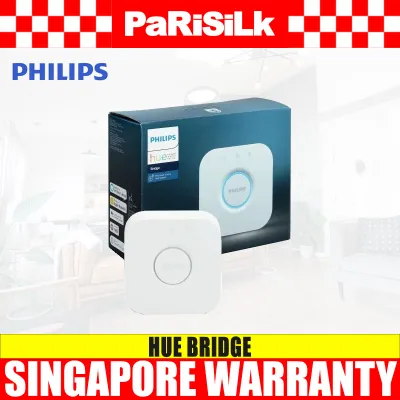
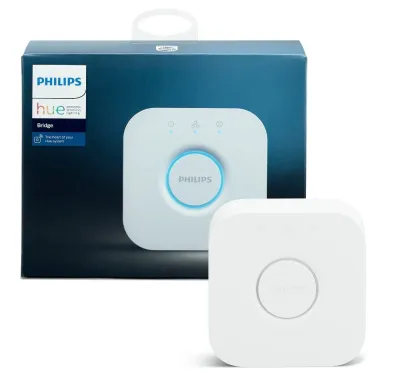
60 Lazada user ratings
Seamless smart lighting experience, Seamless integration with smart home devices, Reliable and durable product,
Purchased on 12.12 at a good price. Easy to setup — just follow the simple instructions given.
Items received the very next day and is in working condition.
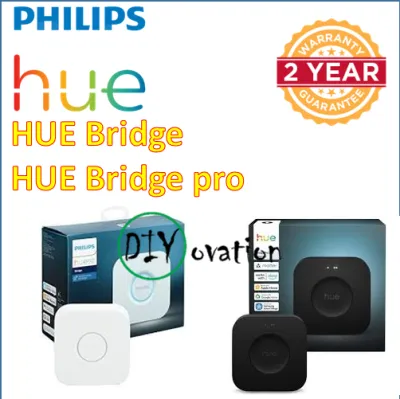
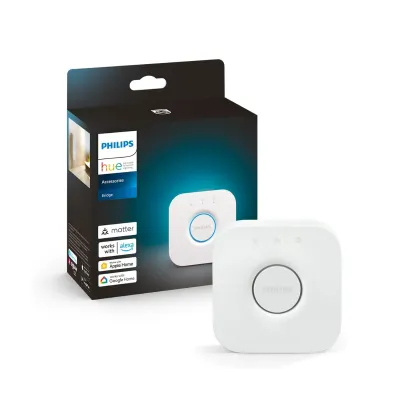
247 Lazada user ratings
Fast packing and received within 2 days. Item was very well packed. Bought to replace my faulty 7 years old bridge. Tested and working well.
Seamless integration with other Hue lights, Convenient control via smartphone, interesting new features added on top of the base model
Ye to use but packaging is good High-quality plastic material, Enhance your home ambiance,
Received in good condition
34 Lazada user ratings
Fast delivery! It said pre-order and ships in 30 days, one well later it was here! Not set up yet because it requires my HomeKit to be rebui…Read full reviewShow less
Fast delivery! It said pre-order and ships in 30 days, one well later it was here! Not set up yet because it requires my HomeKit to be rebuild because of the new matter binding, this might take some time! But I’m looking forward to having this guy be a part of my smart home…
Fast processing speed, Advanced encryption security,
High capacity memory, Easy smart home integration,
User-friendly design, Easy smart home integration,
Received in good condition.
Prices are valid at publication and may change. Please refer to the product page for the latest price.
On the software side, you require a compatible smartphone or tablet running a modern operating system to host the control application. Ensure your mobile device is connected to your home’s local Wi-Fi network rather than a cellular data connection, as the initial pairing process requires both devices to reside on the same local network segment. Having your Wi-Fi password handy and ensuring your router is fully operational will prevent common connectivity hurdles during the digital handshake.
Step 1: Connect the Bridge to Power and Your Router
The physical installation of the bridge establishes the hardware foundation for your smart lighting ecosystem. Place the bridge in a well-ventilated area near your router, ideally elevated on a shelf to maximize wireless range. Avoid placing the unit inside metal cabinets or directly behind large electronic appliances, which can degrade wireless signals.

Connect the provided power adapter to the DC input port on the back of the bridge, then plug the other end into a standard electrical wall outlet. In Singapore, ensure the wall socket switch is turned on to supply power to the device. The bridge does not feature a physical power switch; it will automatically begin its boot sequence as soon as it receives electrical current.
Next, take the included Ethernet cable and insert one end into the network port on the rear of the bridge until you hear a distinct click. Plug the opposite end of the cable into any available local area network (LAN) port on your home router. Avoid plugging the cable into the wide area network (WAN) or internet port of your router, as this will prevent the bridge from communicating with other devices on your local home network.
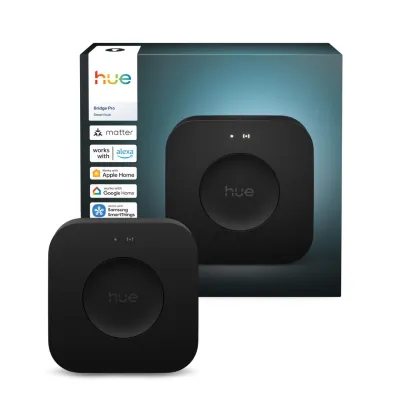
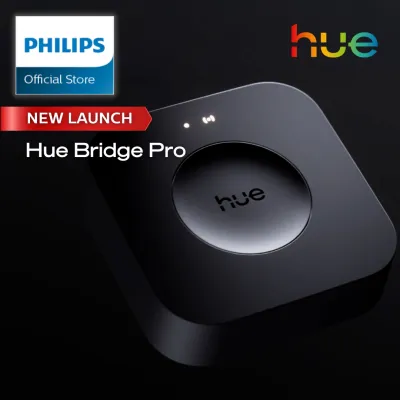
Once the physical connections are secure, observe the LED indicator lights on the top face of the bridge. The power light should illuminate immediately. Shortly after, the local network and internet lights will turn solid, indicating the bridge is communicating with your router and the cloud.
Step 2: Download the App and Create an Account
With the physical hardware online, prepare your mobile device to manage the system. Open your device’s app store, search for the official Philips Hue application, and download it to ensure compatibility and receive security updates.
Upon launching the application for the first time, you will be prompted to create a user account or log in to an existing profile. Creating an account is highly recommended, as it securely links your bridge to the cloud, enabling remote control capabilities when you are away from home, facilitating automatic firmware updates, and allowing integration with third-party smart home platforms. Follow the on-screen prompts to verify your email address and establish a secure password.
During the initial setup, the application will request several system permissions on your mobile device. It is crucial to grant permission for local network access, as this allows the application to scan your home network and locate the physical bridge. Additionally, enabling Bluetooth and location services during this phase can assist the application in identifying nearby hardware components and optimizing regional settings, though you can adjust these permissions later in your device’s system settings if desired.
Step 3: Pair the Bridge with the Hue App
Once the application is configured and your account is active, initiate the digital pairing process. Ensure your mobile device is connected to the same Wi-Fi network as the router hosting the bridge. Open the application and select the option to set up a new system, prompting the software to scan your local network for the hardware.
When the application successfully detects the bridge on your network, it will display an on-screen prompt instructing you to perform a physical verification step. Walk over to your physical bridge and firmly press the large, round button located in the center of the device’s top face. This physical “push-link” action is a security measure designed to ensure that only individuals with physical access to the hardware can gain control over your smart lighting system.
After pressing the button, the application will immediately recognize the confirmation and complete the pairing sequence. You will see a success message on your screen, indicating that the bridge is now securely linked to your mobile device and account. The application will then guide you through an initial home configuration wizard, where you can define your home’s name and create individual rooms or zones, such as the living room, kitchen, or bedroom, to organize your upcoming light fixtures.
Step 4: Add Your First Smart Bulbs and Accessories
With the bridge integrated, you are ready to add smart bulbs and accessories. Before installing new bulbs, verify their voltage compatibility, base type, and wattage limits against your fixtures to ensure safe operation. Once verified, install your smart bulbs into their fixtures. Ensure the physical wall switches controlling these fixtures remain turned on, as smart bulbs require constant electrical power to receive wireless commands from the bridge.
Open the mobile application, navigate to the settings menu, and select the option to add new lights. Tap the search button to initiate an automatic scan of your home. The bridge will broadcast a wireless signal to locate any compatible smart bulbs within its range, which typically takes less than a minute. As the application discovers each bulb, it will flash the light briefly to let you know which physical fixture has been found.
If the automatic search fails to locate a specific bulb—which can happen if the bulb was previously paired with another system or is positioned near the edge of the wireless range—you can add it manually. Locate the unique six-digit serial number printed directly on the base of the bulb, enter it into the designated field in the application, and start the search again. Once all your lights are successfully added, drag and drop them into the designated rooms you created during the initial setup to enable collective room control.
Troubleshooting Common Setup Issues
While the installation process is designed to be straightforward, network configurations or hardware placements can occasionally cause connectivity issues. If the second indicator light on your bridge remains off or continues to blink indefinitely, the device is not establishing a local network connection. Double-check that both ends of the Ethernet cable are firmly seated in their ports, try using a different LAN port on your router, or replace the Ethernet cable entirely to rule out a physical wiring fault.
If the mobile application displays an error stating that it cannot discover the bridge, verify that your smartphone or tablet is connected to the correct Wi-Fi network. Many modern routers broadcast separate 2.4 GHz and 5 GHz wireless networks, or feature isolated “guest” networks that prevent connected devices from communicating with wired LAN devices. Ensure your mobile device is not on a guest network and that any active Virtual Private Network (VPN) software on your phone is temporarily disabled, as VPNs can mask your local network path.
If you have verified all network settings, restarted your router and bridge, and still cannot establish a connection, check for local wireless interference. Keep the bridge at least one meter away from your Wi-Fi router and other wireless transmitters to prevent signal overlap. For persistent hardware faults, such as indicator lights failing to turn on even when connected to a known working wall outlet, stop the setup process and consult the manufacturer’s official manual or contact their customer support team for hardware diagnostics.
Frequently Asked Questions (FAQ)
Can I set up the Philips Hue Bridge without an internet connection?
Initial setup requires an active internet connection to register your account, download firmware updates, and link the bridge to cloud services. Once configured, the bridge operates locally using its internal wireless protocol to communicate with your bulbs. You can still control your lights, activate scenes, and use physical smart switches over your local Wi-Fi network if your internet service goes offline. However, remote control from outside your home and voice assistant integrations will be unavailable until internet connectivity is restored.
How many bulbs can one Philips Hue Bridge support?
To plan your smart lighting layout, check the official manufacturer specifications or product packaging for the exact maximum limit of connected devices. Generally, a single bridge manages a substantial number of lights and accessories, which is sufficient for a standard household. If your lighting design exceeds this hardware limit, or if you are configuring lighting across a very large property, you can add a second bridge to your system and manage both through the mobile application.
Do I need a smart switch to use the Hue Bridge?
You do not need a physical smart switch, as the bridge communicates directly with your smart bulbs via the mobile application. The app provides full control over dimming, color adjustments, scheduling, and room organization. However, adding physical smart switches or wireless dimmers later enhances convenience, allowing family members or guests to control the lights manually without needing a mobile device or accidentally cutting power to the smart bulbs at the wall switch.
Community discussion
Share your experience or ask a question. Comments are reviewed before publication.